Match Bag Photos in Files
WorldTracer displays bag photos (when available) in the Matched Files screen. You can compare photos from on‑hand and delayed bag files side by side to support faster, more accurate match decisions.
View Potential File Matches
You can view potential file matches using two options:
-
Option 1: System or Extended Matches in the Headquarters Inbox, Agent Inbox or Station Inbox
-
Option 2: The matching History section of a file.
Option 1: View Matching Files using Station Inbox and Systems Matches:
Example of Systems Matches : Menu: Action Files > Station Inbox > System Matches
-
Compare and Choose a System Match. A series of file matches will display. See example of a file match and the file match score below.

-
View and Compare Bag Photos in a matched delayed and on-hand file.
-
Click Transfer if the bag photos and details match.
Option 2: View History in the Matching Files
-
On the Home page, enter the file reference in the Search bar.
-
Enter the file reference in the Filter Current Messages field.
-
Click Matching. The matched files will display.
-
Compare bag photos in the matched delayed and on-hand files.
-
Click Forward bag or Request Bag if the bag photos and details match.
View and Compare Bag Photos in a matched delayed and on-hand file
The Matched Files screen displays bag photos in the Delayed Bag and On-Hand Bag files (when available). You can compare these photos to help decide if there is a match. A delayed bag file can contain multiple bags, whereas an on‑hand bag file contains only one bag. Only bags with photos can be selected for viewing. Thumbnail previews are displayed adjacent to the main photo. Select a thumbnail to view the main photo.
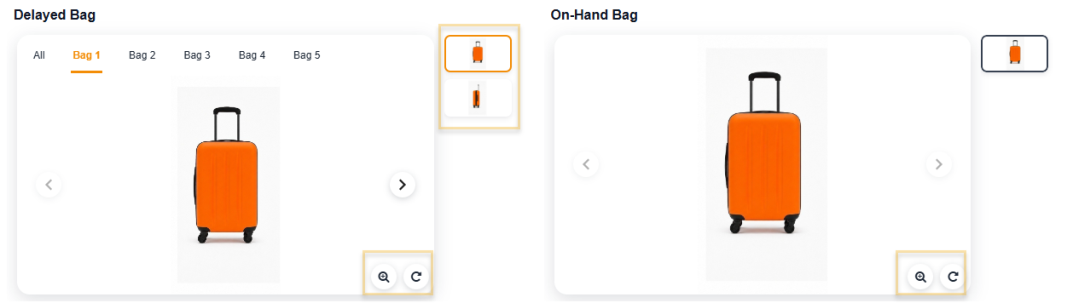
If a Delayed Bag file has multiple bag photos:
-
Select a thumbnail to review the main photo.
Tip: Select the All tab to preview thumbnails of all bag photos.
-
Select a tab (for example, Bag 1) to view photos for that bag. The active tab is highlighted in orange.
-
Use the next icon (>) or the previous icon (<) to move between images.
-
Select Zoom in or Zoom out icon to change the photo size.
-
Select Rotate to change the orientation.
-
Tip:
-
Controls appear only when photos are available.
-
Adjustments apply to the selected photo only.
-
Changes are temporary and reset when you leave or refresh the page.
-
Photos remain within the photo section when zoomed.
-
Note: If no bag photos are available, the photo section is hidden, a message “No photos available” is displayed, and the section scrolls with the page.